


Netchex - Who’s In & Out
Who’s In & Out gives managers a real-time view of attendance across their workforce, who is here, who is missing, and what needs attention. When an employee misses a scheduled shift, push notifications and SMS alerts surface the issue, while responsive web and mobile experiences help managers review details, contact the employee, and coordinate coverage.
Who’s In & Out · Mobile
From Missed Shift to Faster Response
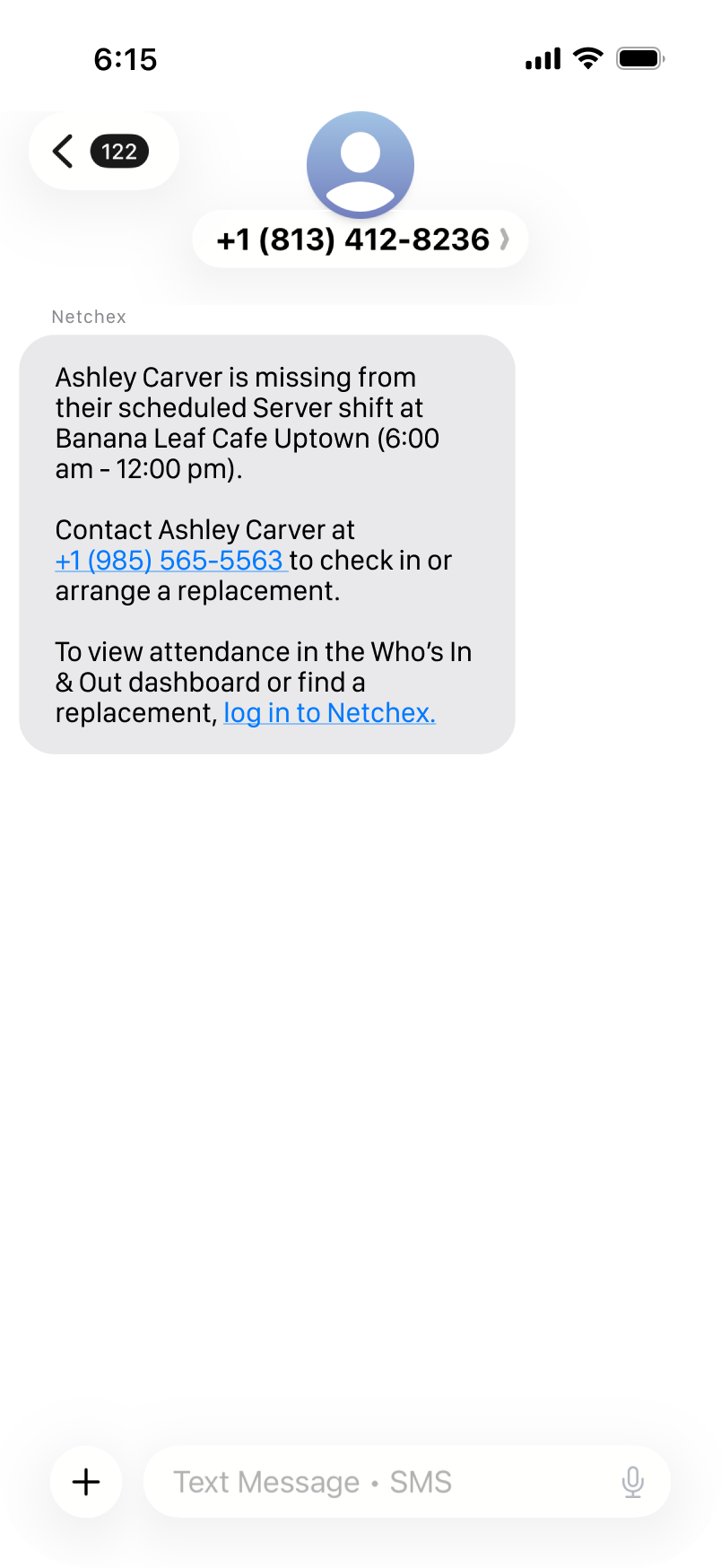
01 · Receive an SMS Alert
An SMS alert brings the missed shift to the manager’s attention and offers a direct next step.
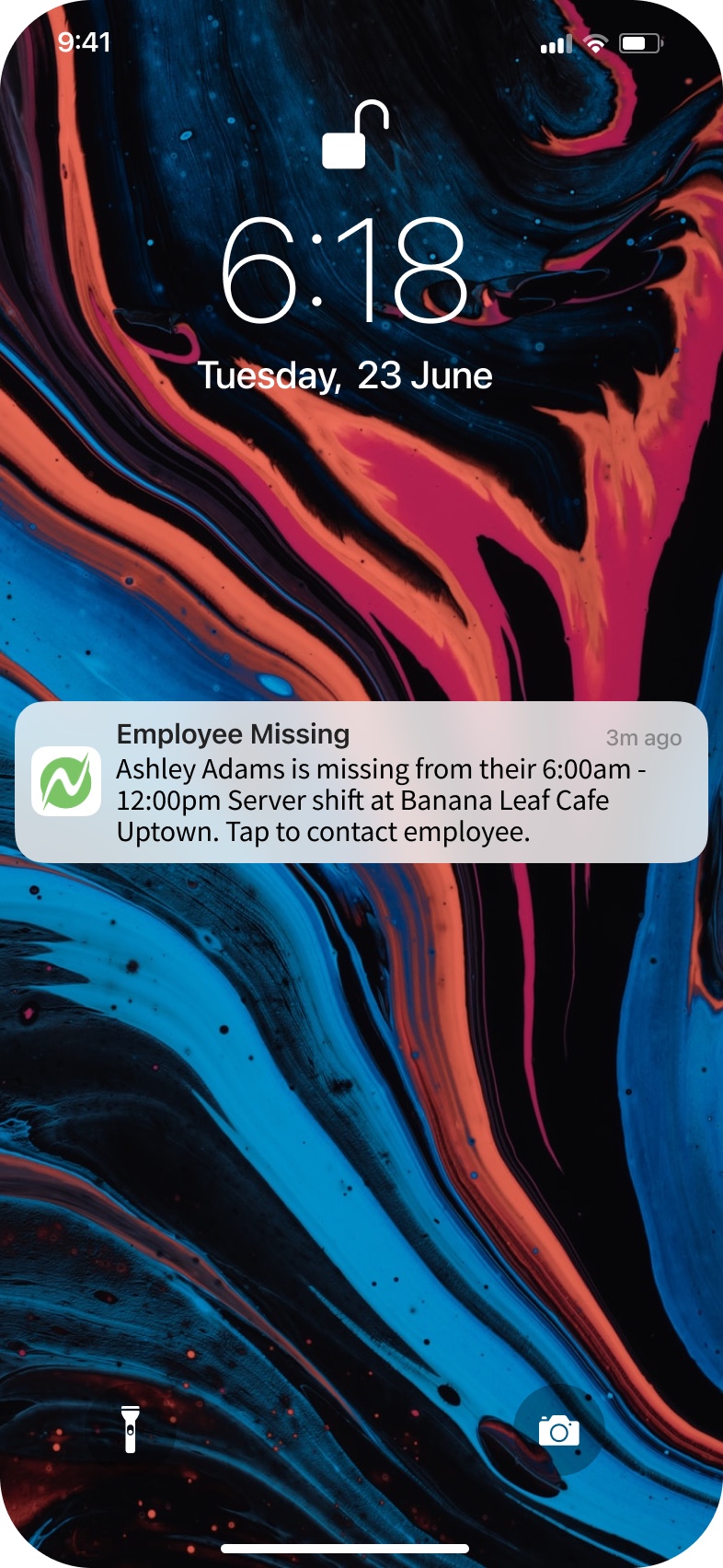
02 · See the Push Notification
A push notification surfaces the attendance issue in the Netchex mobile app for a faster response.
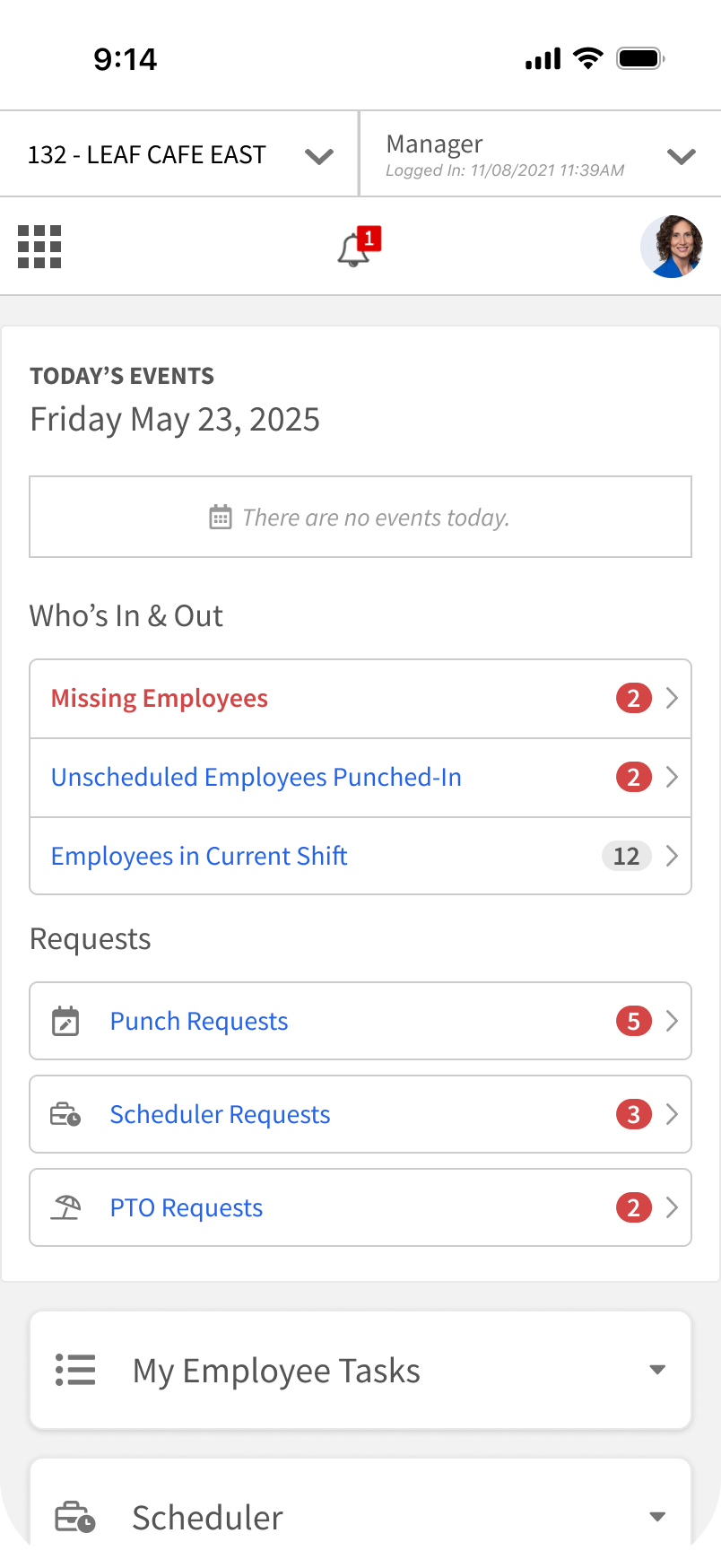
03 · Review What Needs Attention
The manager home screen prioritizes missing employees and other attendance exceptions.
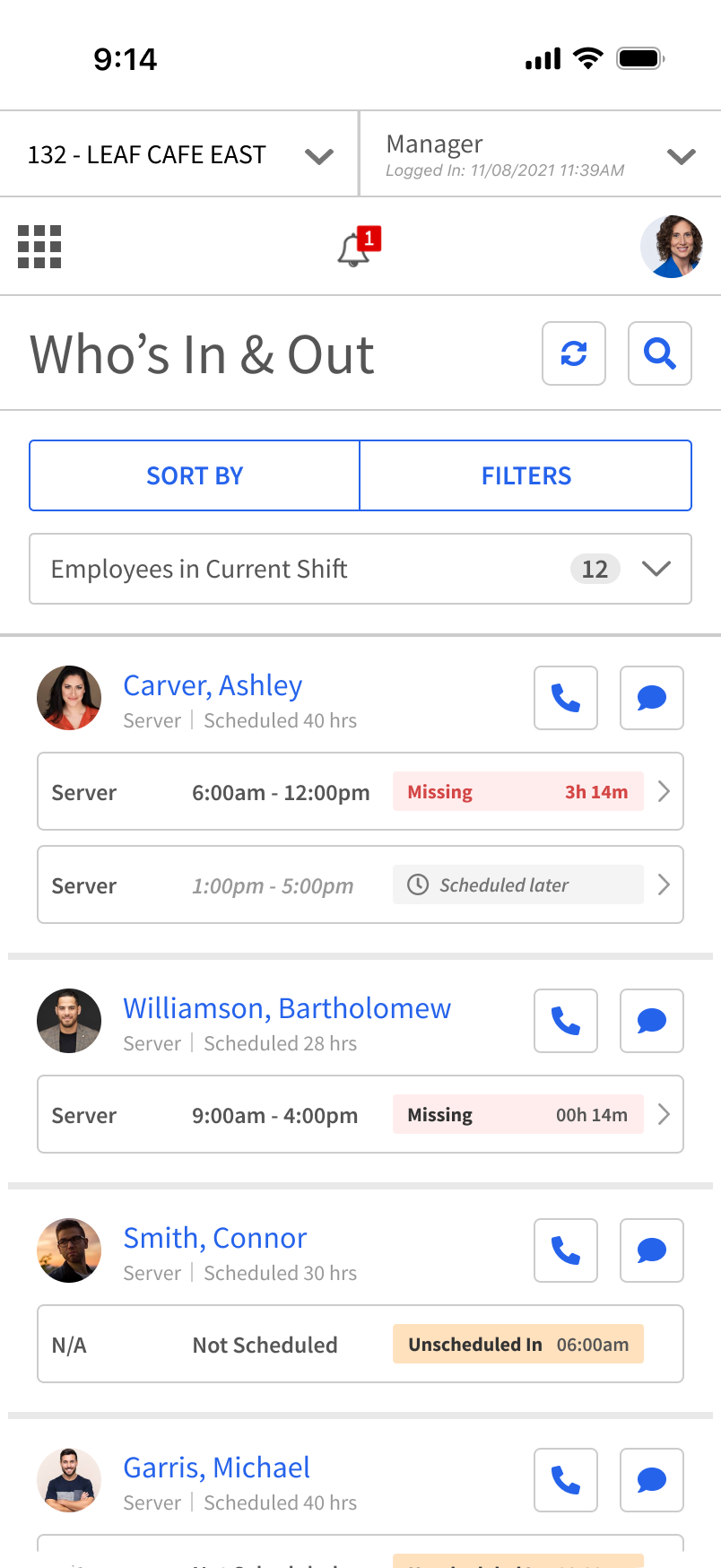
04 · Check Who’s In & Out
The live roster shows who is here, who is missing, and who may need follow-up.
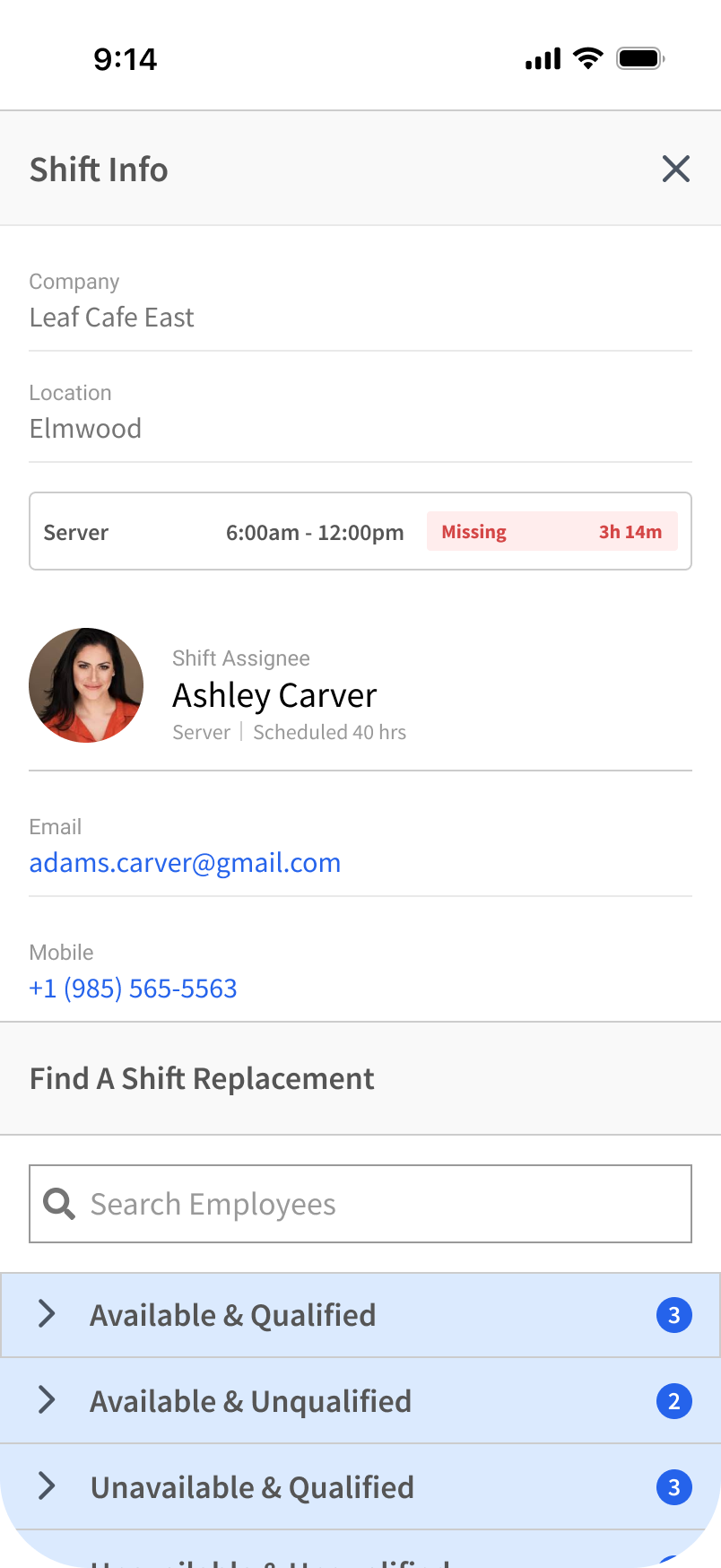
05 · Review the Affected Shift
Shift details connect the employee’s status, schedule, and contact information in one place.
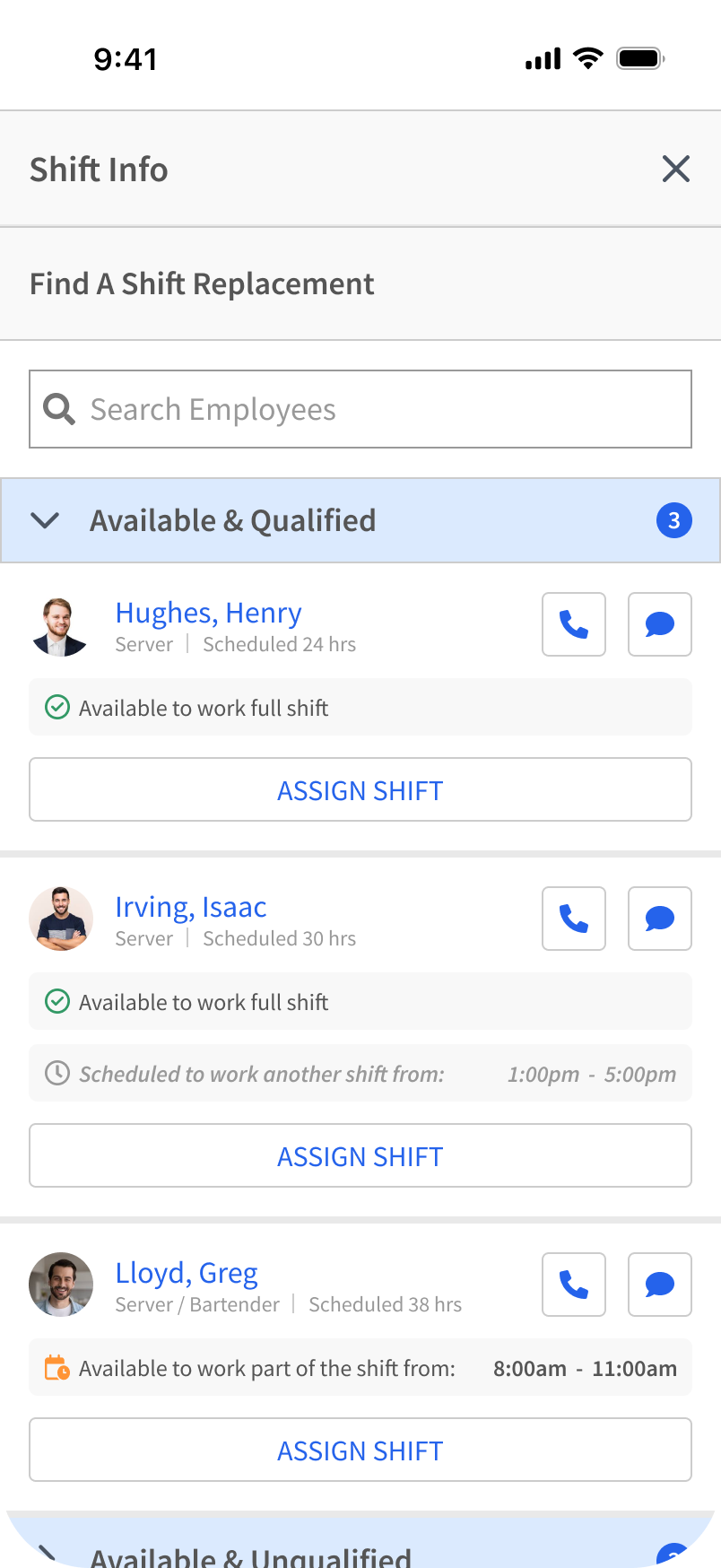
06 · Find a Qualified Replacement
Managers can compare potential replacements by availability and qualifications.
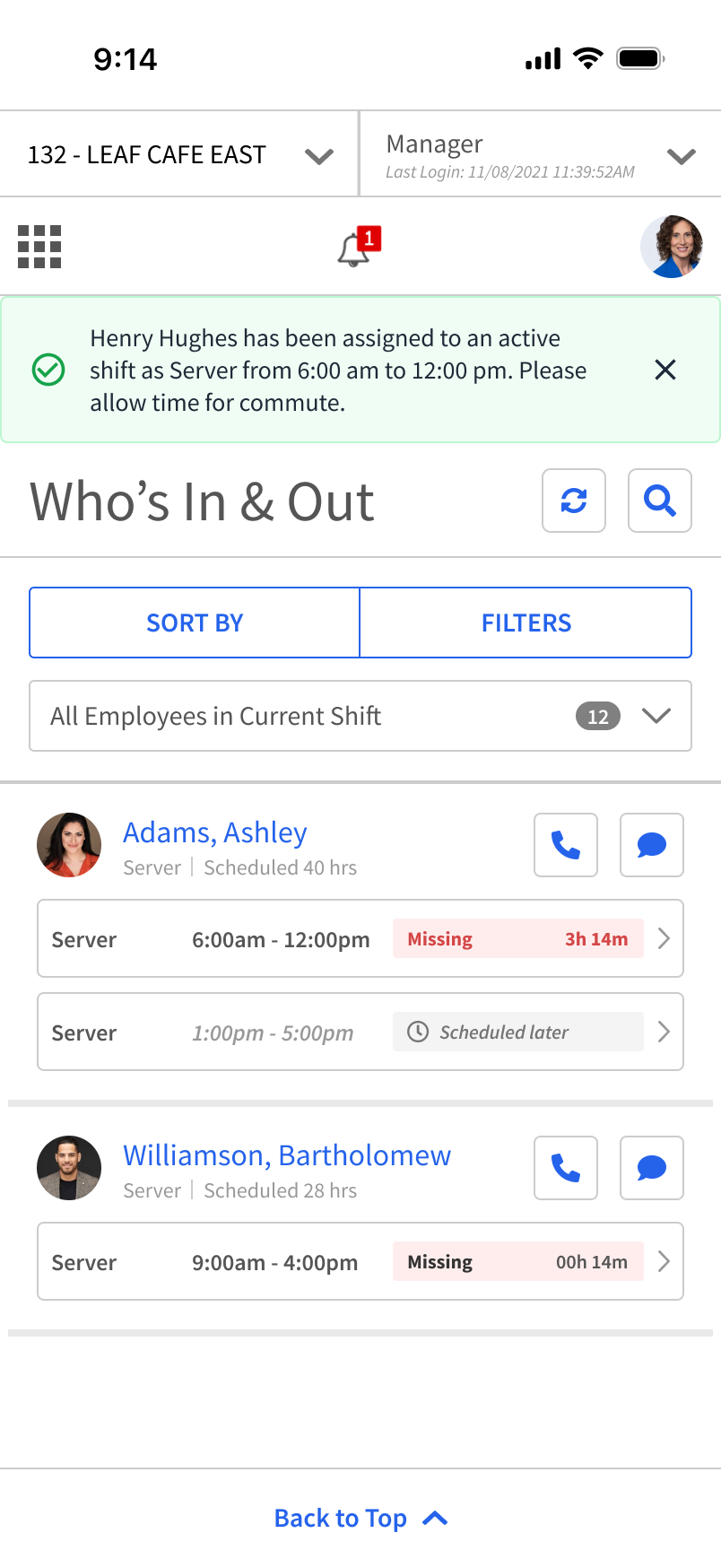
07 · Confirm the Coverage Change
A confirmation verifies the reassignment and updates the roster with the newly covered shift.
Who’s In & Out · Desktop
From Missed Shift to Covered Shift
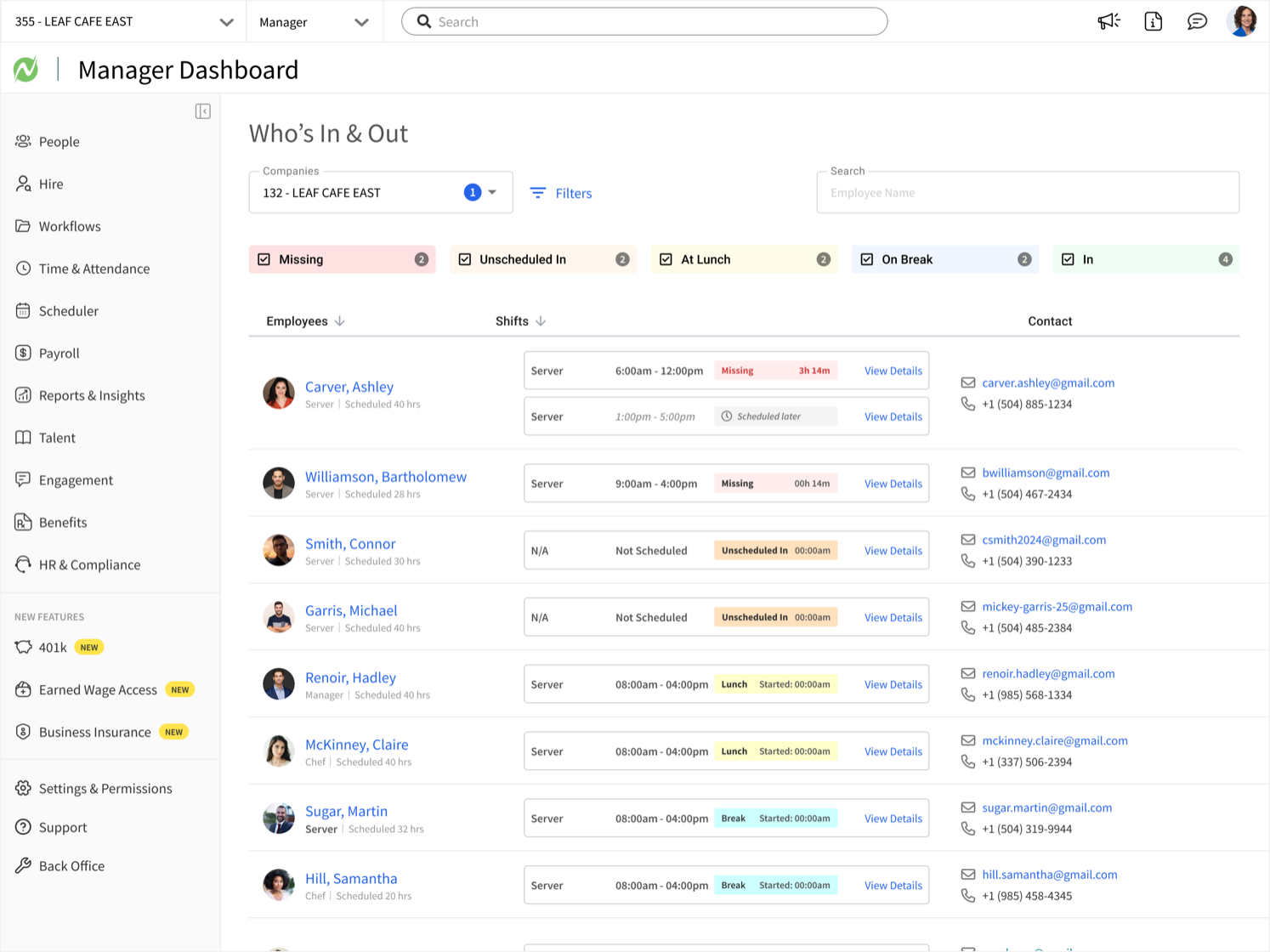
01 · Spot the Staffing Gap
The live roster makes missing employees and uncovered shifts easy to identify.
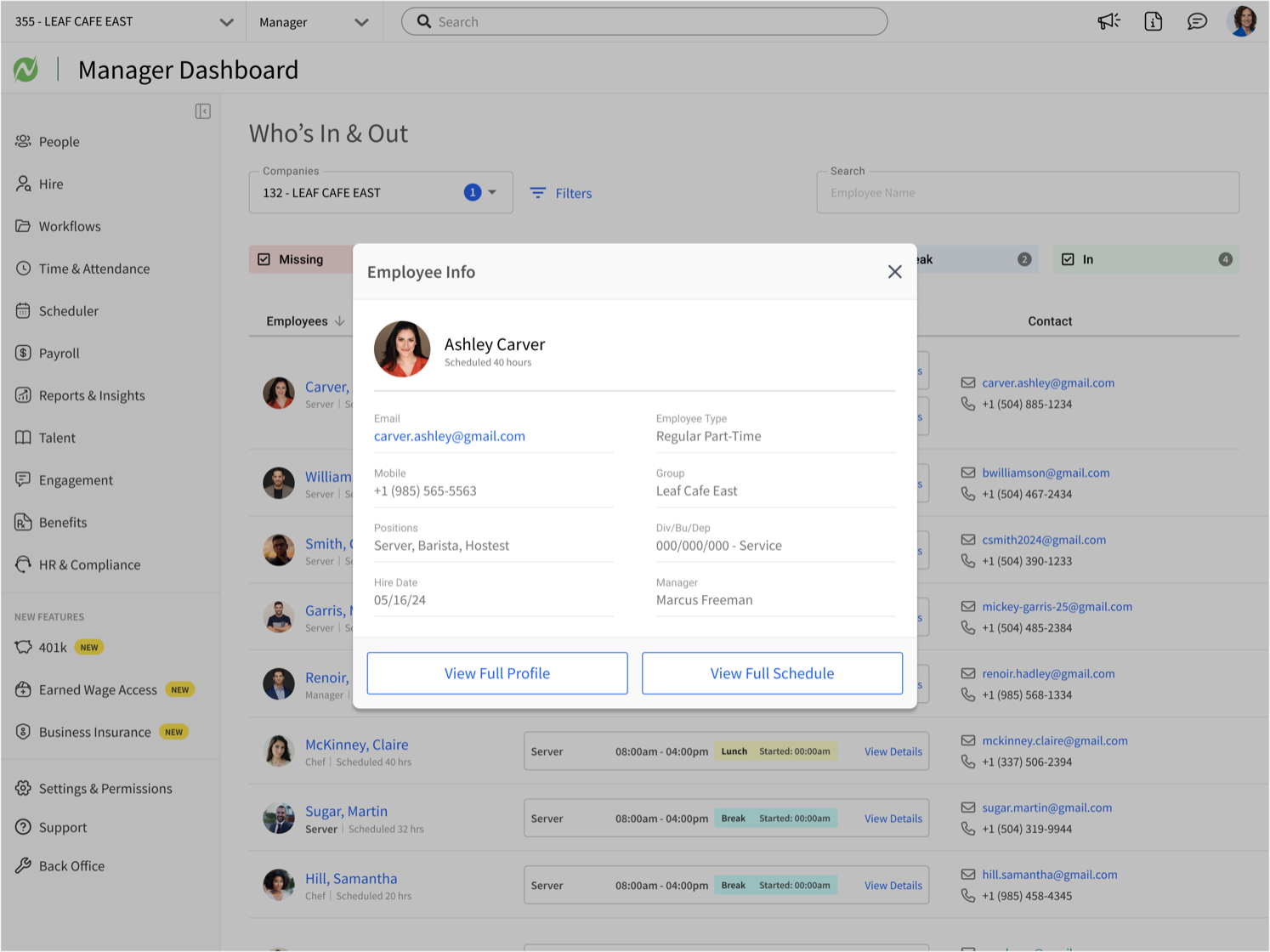
02 · Review Employee Details
Managers can confirm contact information and reach the missing employee directly.
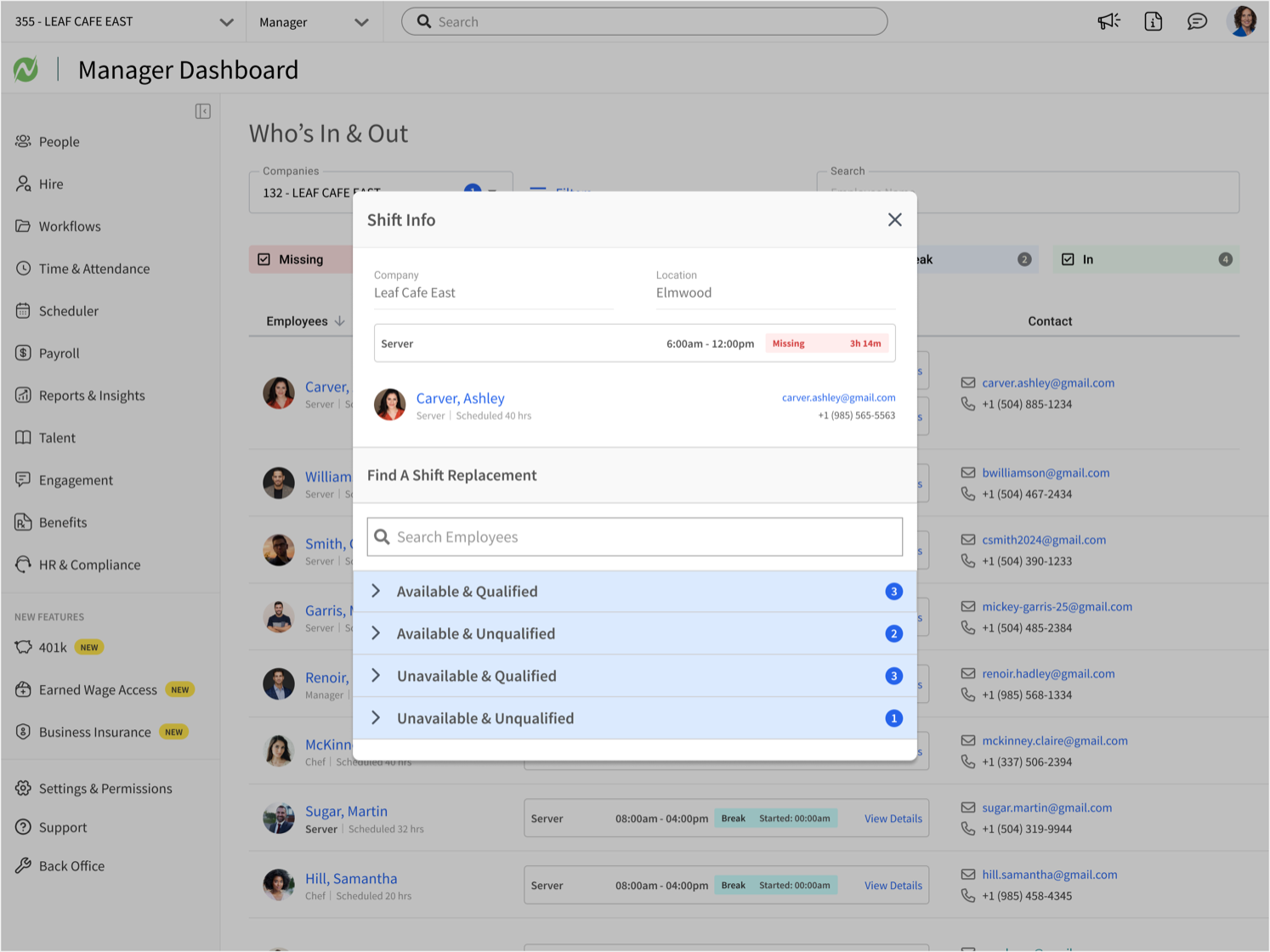
03 · Open the Affected Shift
Shift details show the coverage need and organize possible replacements by availability and qualifications.
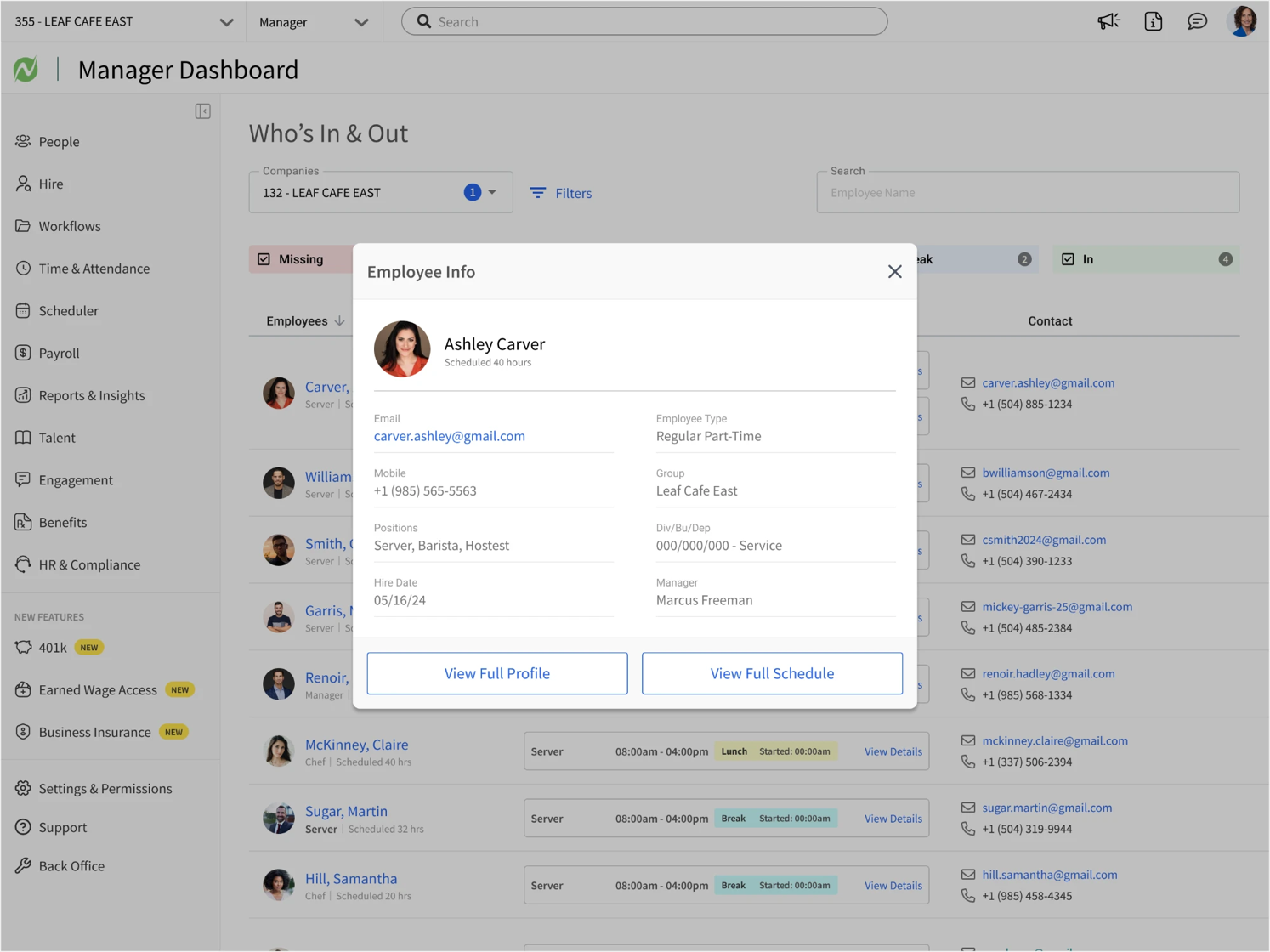
04 · Choose a Qualified Replacement
Managers can narrow the list to employees who are qualified and likely to be available.
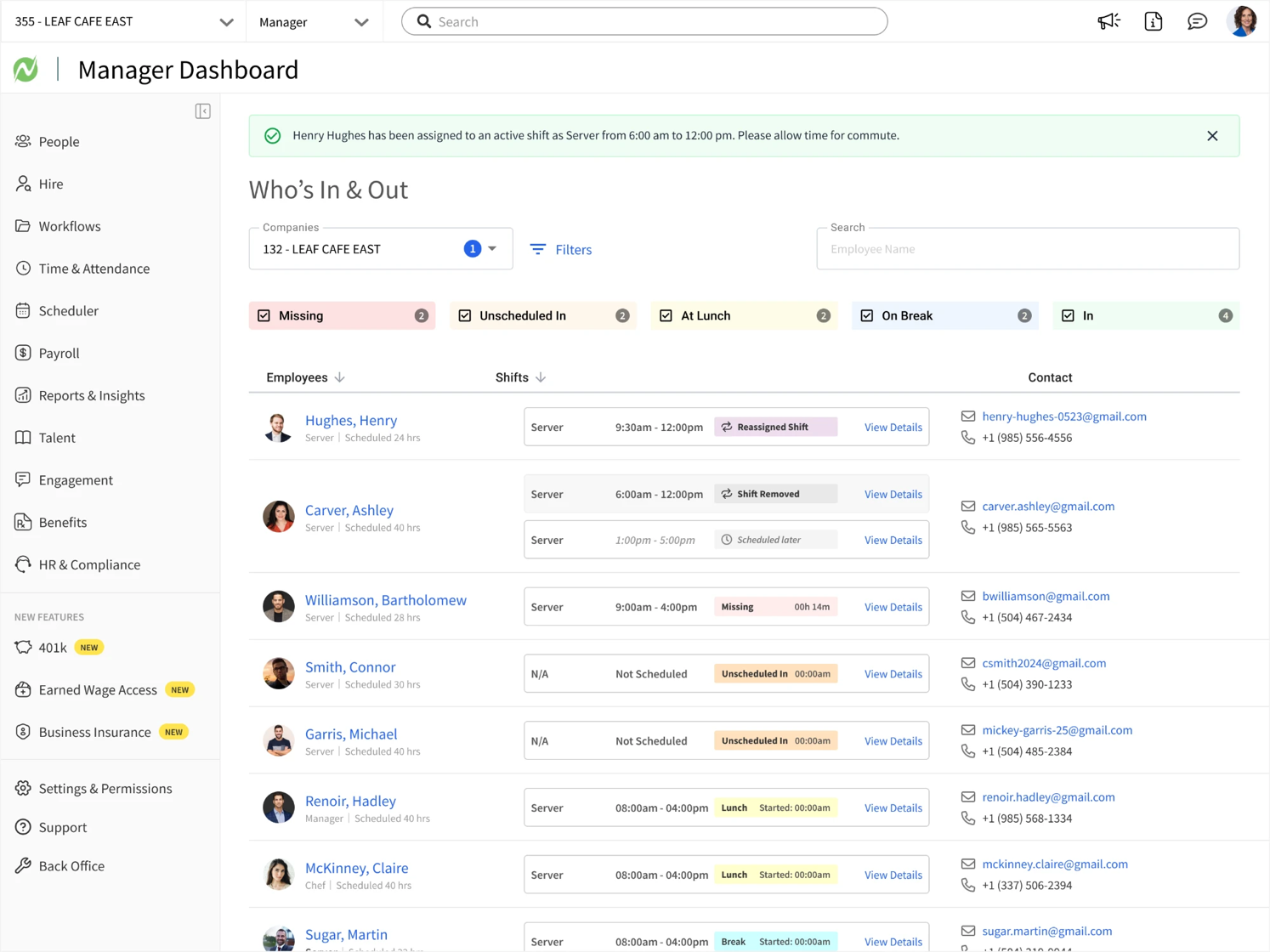
05 · Confirm and Assign Coverage
After confirming availability, the manager can assign the replacement and close the staffing gap.